article
How to Add a Waitlist to Strikingly (Custom Code)
Add a GetWaitly waitlist to Strikingly with a Custom Code section — no coding — plus a hosted-page iframe fallback when custom code is not available.

Strikingly is a website builder aimed at getting a site live fast, with a form and custom code built in. That means you can add a real waitlist without leaving the builder — the GetWaitly widget drops straight into a Strikingly section.
Here is how to add a waitlist to Strikingly, plus the fallback if your plan limits custom code.
The short answer
Add a Custom Code / Embed section to your Strikingly page, paste the two-line GetWaitly snippet, and publish. The form collects signups in about five minutes. No code to write.
What you need
- A GetWaitly account with a waitlist created (the free plan covers 100 subscribers).
- A Strikingly site you can edit and publish.
Step 1 — Copy the embed snippet
In your GetWaitly dashboard, create a waitlist and set its headline, accent color, and font. Open Settings → Widget and copy the snippet:
<script src="https://getwaitly.com/widget.js" defer></script>
<div class="gw-widget" data-waitlist-id="YOUR_WAITLIST_ID"></div>
The widget inherits your waitlist's branding, so it matches your Strikingly page.
Step 2 — Add it to Strikingly
- Open your site in the Strikingly editor.
- Add a Custom Code (or Embed) section where the form should appear.
- Paste both lines from Step 1.
- Publish the page.
Step 3 — Test it
Open the live page and submit a test email. Confirm the subscriber appears in your GetWaitly dashboard.
If the form does not show, check that both lines were pasted and that the section has enough width.
The fallback: use the hosted page
If your Strikingly plan does not allow custom code, publish GetWaitly's hosted page instead — a complete signup page served by GetWaitly, so there is nothing for Strikingly to block.
- Publish the hosted page at
getwaitly.com/w/your-id. - Link a Strikingly button to that URL, or embed it in an iframe:
<iframe
  src="https://getwaitly.com/w/YOUR_WAITLIST_ID"
  style="width:100%;height:640px;border:0"
  title="Join the waitlist"
></iframe>
What you get
- A styled signup form matching your accent color and font
- Optional name, phone, and custom questions
- Referral links and queue positions (Starter plan and above)
- Broadcast emails with open and click tracking (Starter and above)
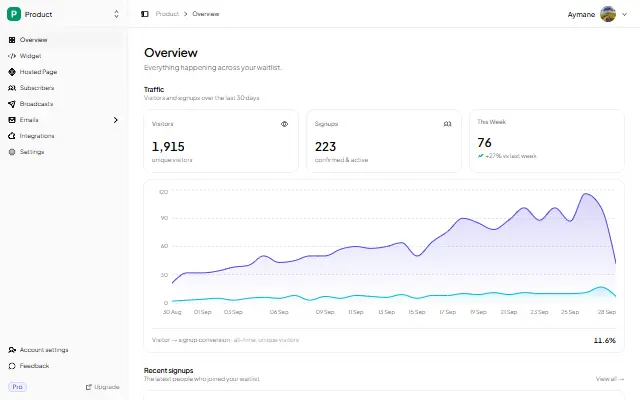
- Analytics: views, signups, conversion rate, 30-day trend
FAQ
Can I add a waitlist to Strikingly without coding?
Yes. You paste a snippet into a Custom Code section — no programming. If custom code is not on your plan, link to the hosted page.
Why is my Strikingly embed blank?
Usually the <div> or the <script> was missed, or the section has no height. Re-paste both lines and widen the section. If it still fails, use the hosted-page iframe.
Is this free?
Yes. The free plan includes the widget, a hosted page, analytics, and up to 100 subscribers. Referrals and broadcasts start at $5/mo.
Related reading
- How to Add a Waitlist to Any Website
- Add a Waitlist to Your Website: Every Platform Guide
- How to Create a Waitlist Page (Free, No Code)
Add a real waitlist to your Strikingly site this afternoon — free, no code. Start your waitlist →

written by
Aymane E.
Founder of GetWaitly. I write about validating ideas, pre-launch, and growth from building a waitlist tool as a solo founder.
Follow on X